Installing Software Remotely with Ohlala SmartOps
Traditional approach to installing software on remote Windows servers:
- RDP into the server
- Download the installer manually
- Click through the installation wizard
- Verify it installed correctly
- Document what you did
With Ohlala SmartOps in Microsoft Teams:
Type: “install vscode on the instance with tag name Windows2022”
That’s it. The AI bot handles everything else - finding the instance, generating the installation script, showing you what it will do, executing remotely via AWS SSM, and reporting back with complete details.
This article shows a real example with actual screenshots from Ohlala SmartOps, including an error that occurred and how the AI automatically fixed it.
TLDR
What happened:
- Sent “install vscode on the instance with tag name Windows2022” in Microsoft Teams
- Ohlala SmartOps generated PowerShell installation script and showed approval card
- First execution failed with PowerShell syntax error
- AI analyzed the error, identified the issue, generated corrected script
- Retry succeeded - VS Code 1.105.1 installed and verified
Key insight: AI-generated code can fail, but with proper error feedback loops, the AI can diagnose and fix its own mistakes automatically. The approval workflow ensures humans stay in control while the AI handles the execution details.
Time: ~6 minutes total (including the error and retry)
The Workflow
I sent this message in Microsoft Teams:
install vscode on the instance with tag name Windows2022
Ohlala SmartOps immediately queried EC2 for instances with that tag, found i-05e85c61817d90df2, and generated a PowerShell installation script.
Approval Card
Instead of blindly executing, Ohlala SmartOps presented an approval card showing exactly what it would do:
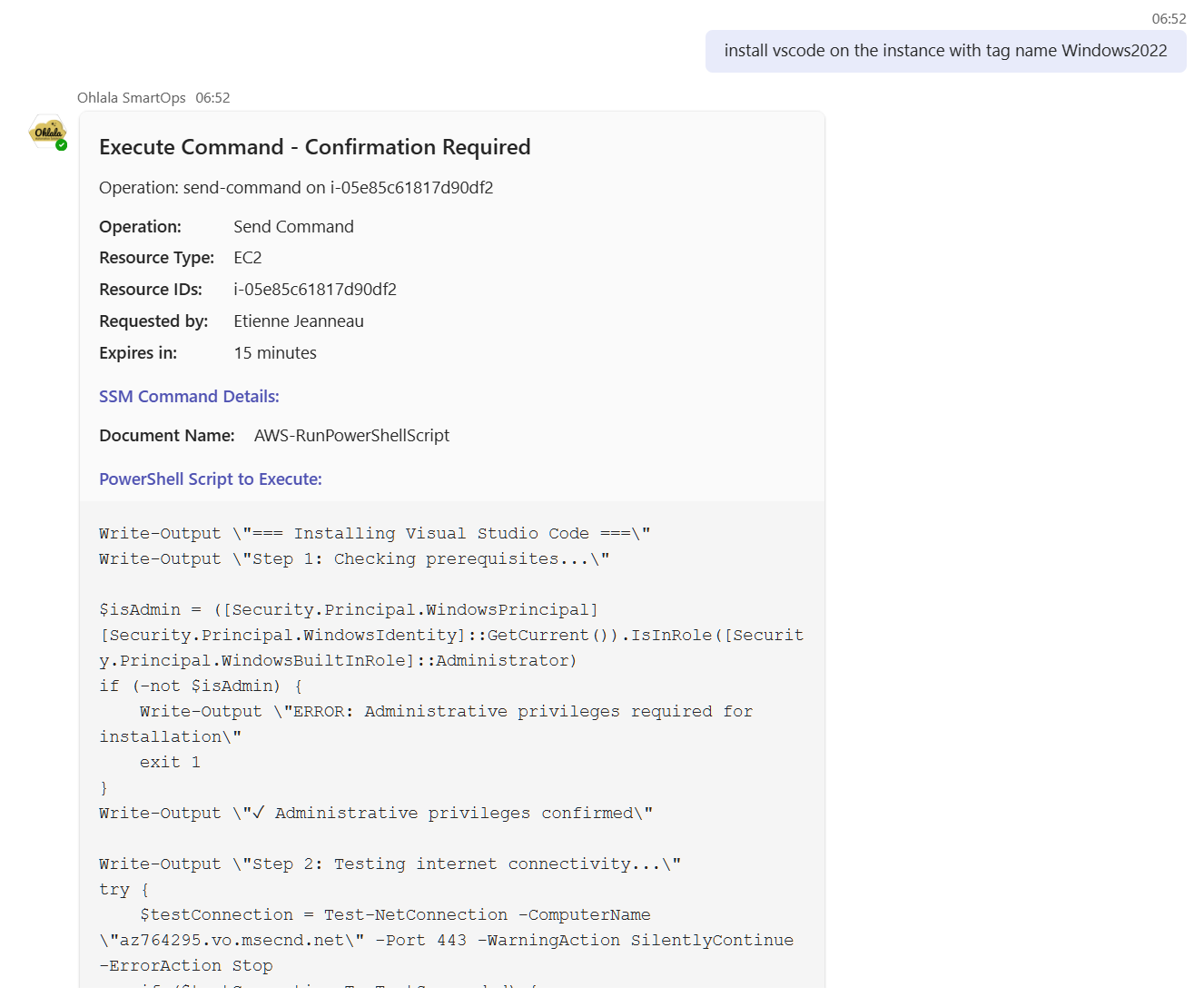 Ohlala SmartOps approval card showing the SSM command and PowerShell script
The card includes:
- Operation type (Send Command via SSM)
- Target instance ID
- Complete PowerShell script that will execute
- 15-minute approval expiration
Full transparency before any action.
Installation Plan
Ohlala SmartOps explained what the installation would include:
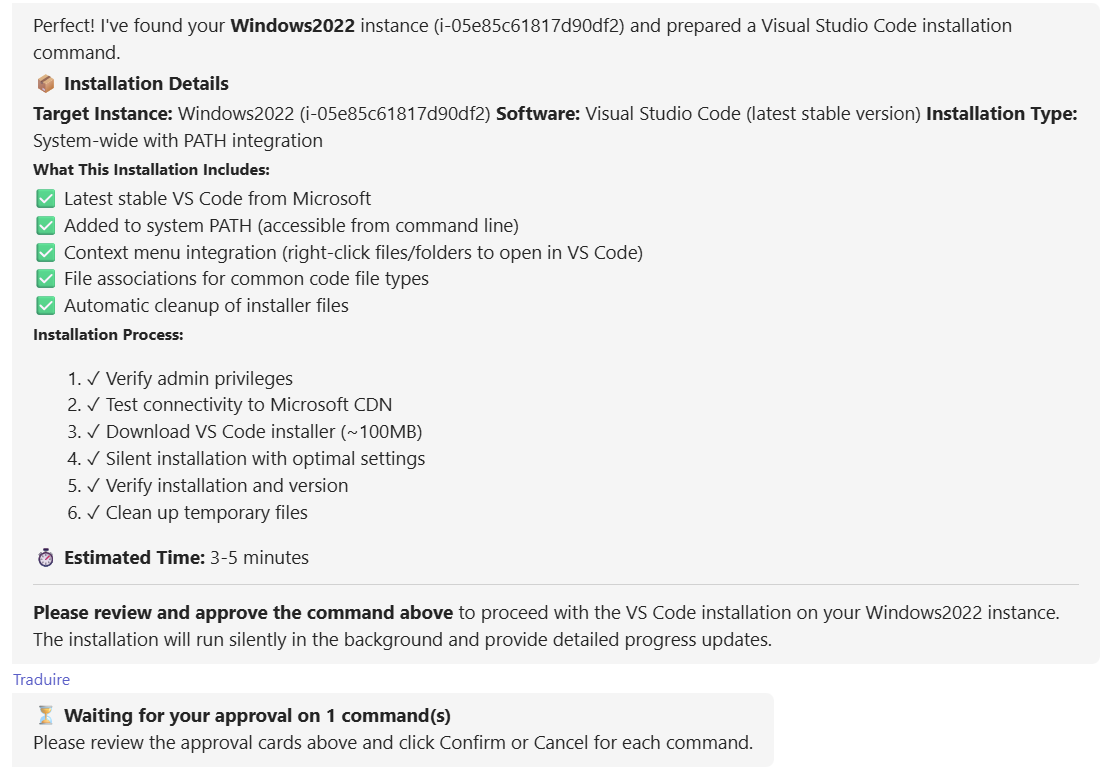 Ohlala SmartOps showing exactly what VS Code installation includes
- Latest stable VS Code from Microsoft
- System PATH integration
- Context menu integration (right-click files/folders)
- File associations
- Automatic cleanup
And the complete installation process:
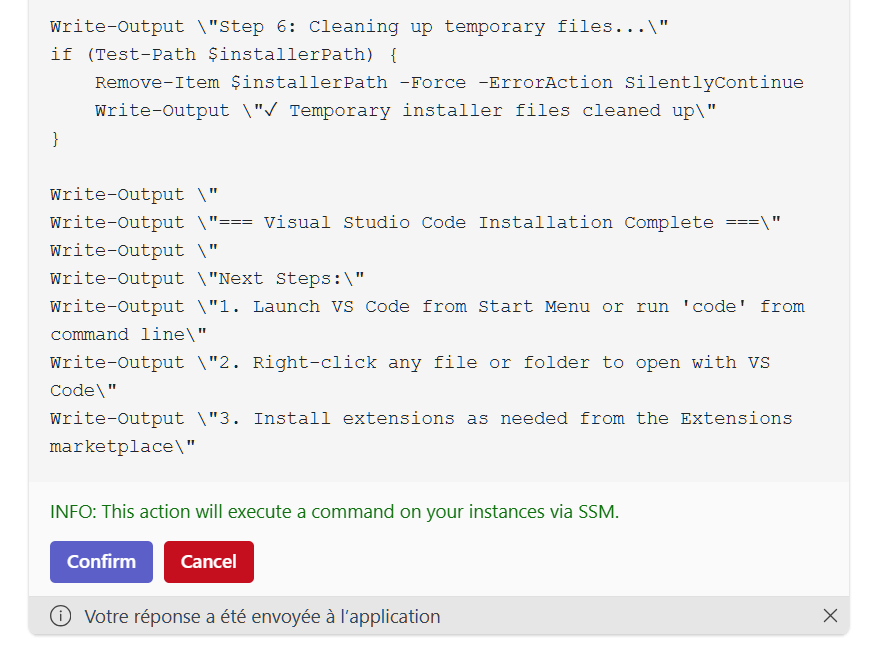 Complete PowerShell script visible in Ohlala SmartOps
The script checks admin privileges, tests network connectivity, downloads from Microsoft’s CDN, installs silently, verifies the installation, and cleans up temporary files.
First Attempt - Error
I clicked Confirm, and Ohlala SmartOps sent the command via AWS Systems Manager:
 Ohlala SmartOps confirms the SSM command was sent
A minute later:
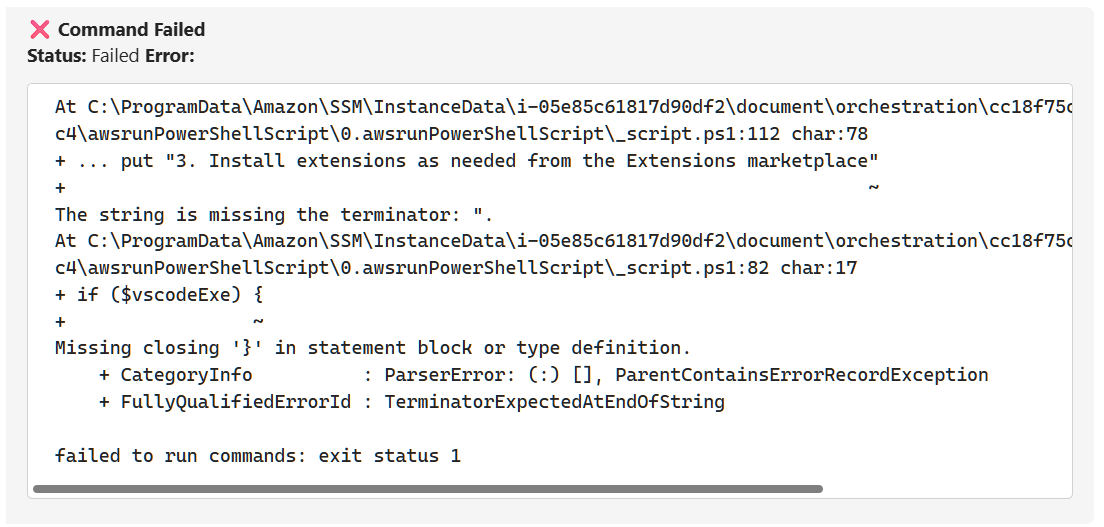 Ohlala SmartOps showing the PowerShell parsing error
The installation failed with a PowerShell syntax error: The string is missing the terminator: ".
AI Error Analysis
This is where Ohlala SmartOps gets interesting. Instead of just reporting the error, it analyzed what went wrong:
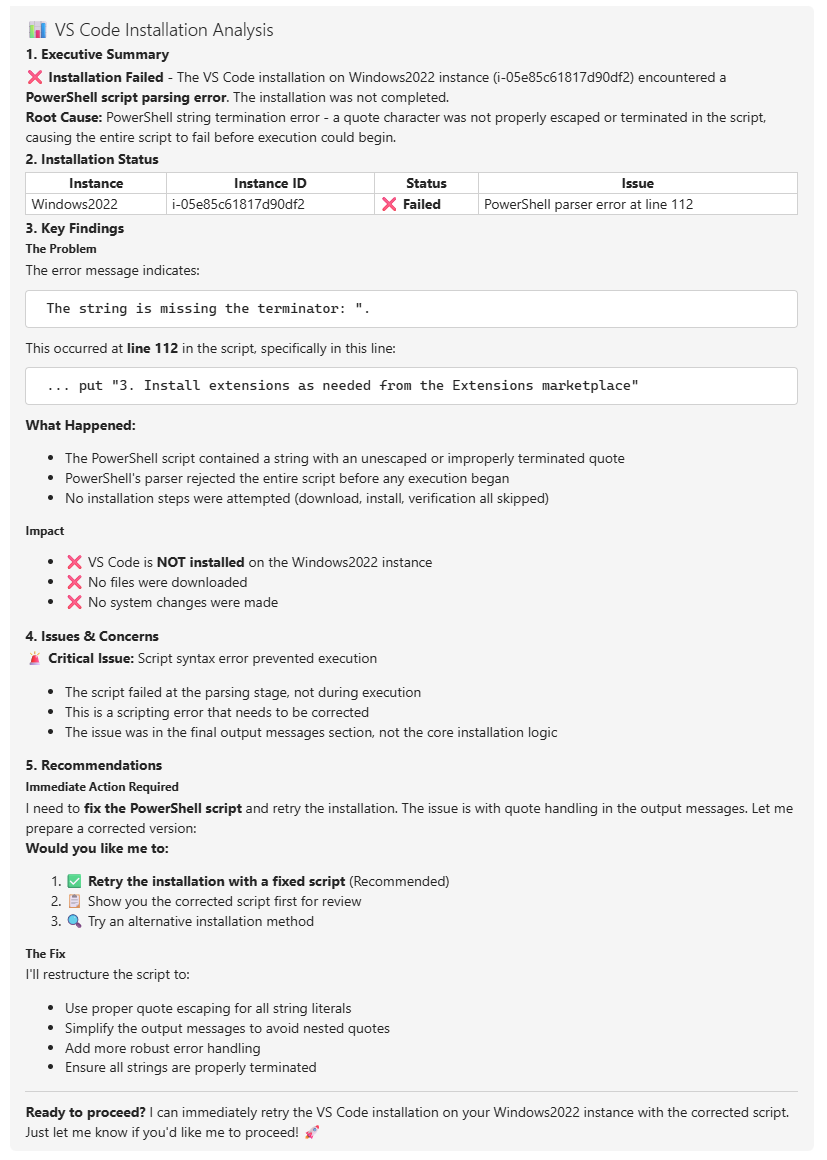 Ohlala SmartOps providing complete root cause analysis
The analysis identified:
- Root cause: PowerShell string termination error at line 112
- Impact: No installation attempted, no files downloaded, no system changes
- Problem: Quote character not properly escaped in the output message section
- Recommendation: Fix the script and retry
Ohlala SmartOps explained the issue in plain language and offered to retry with a corrected script.
Automatic Fix and Retry
Ohlala SmartOps generated a new approval card with the fixed script:
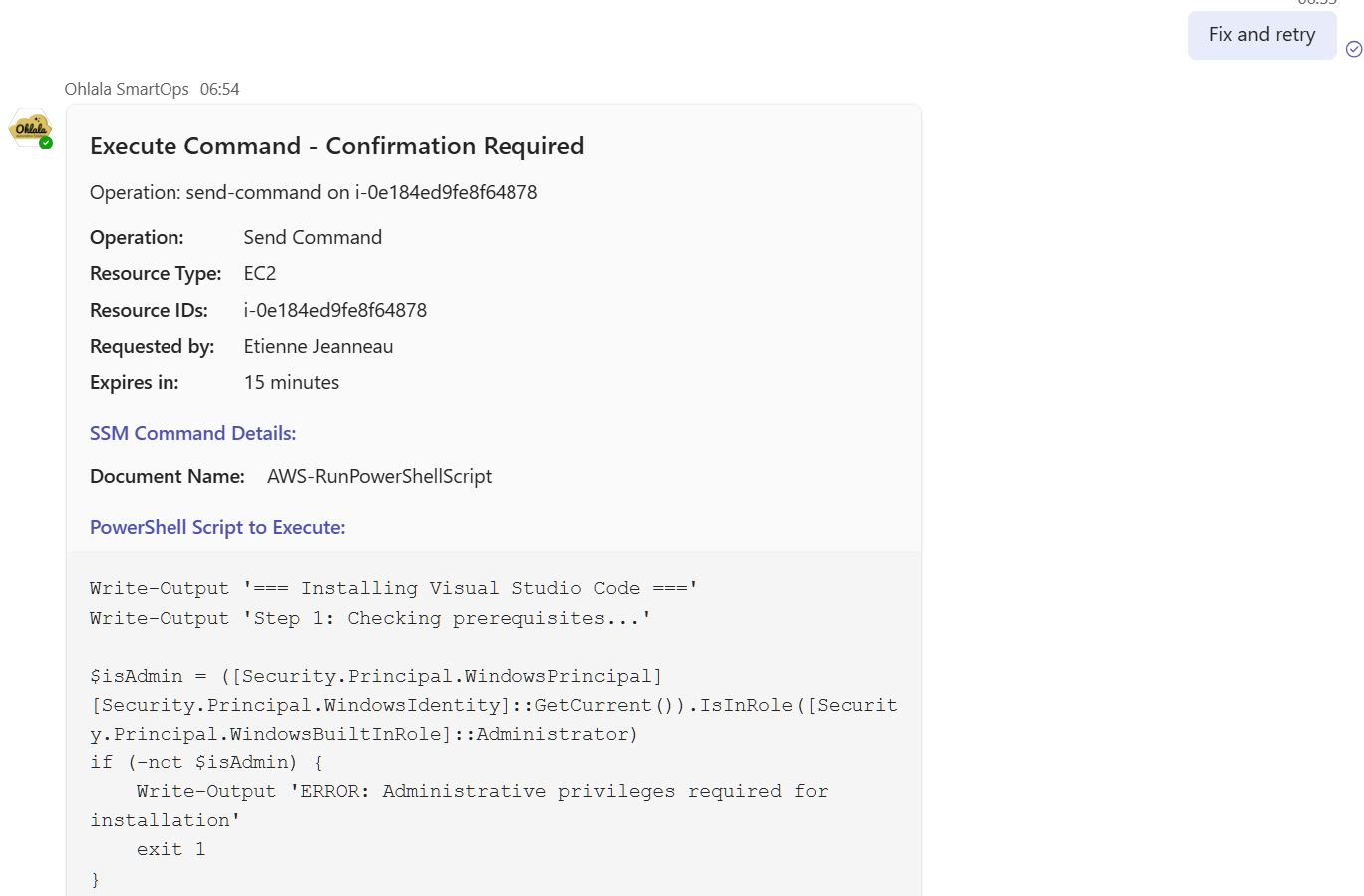 Ohlala SmartOps retry approval card with corrected PowerShell
And explained what was fixed:
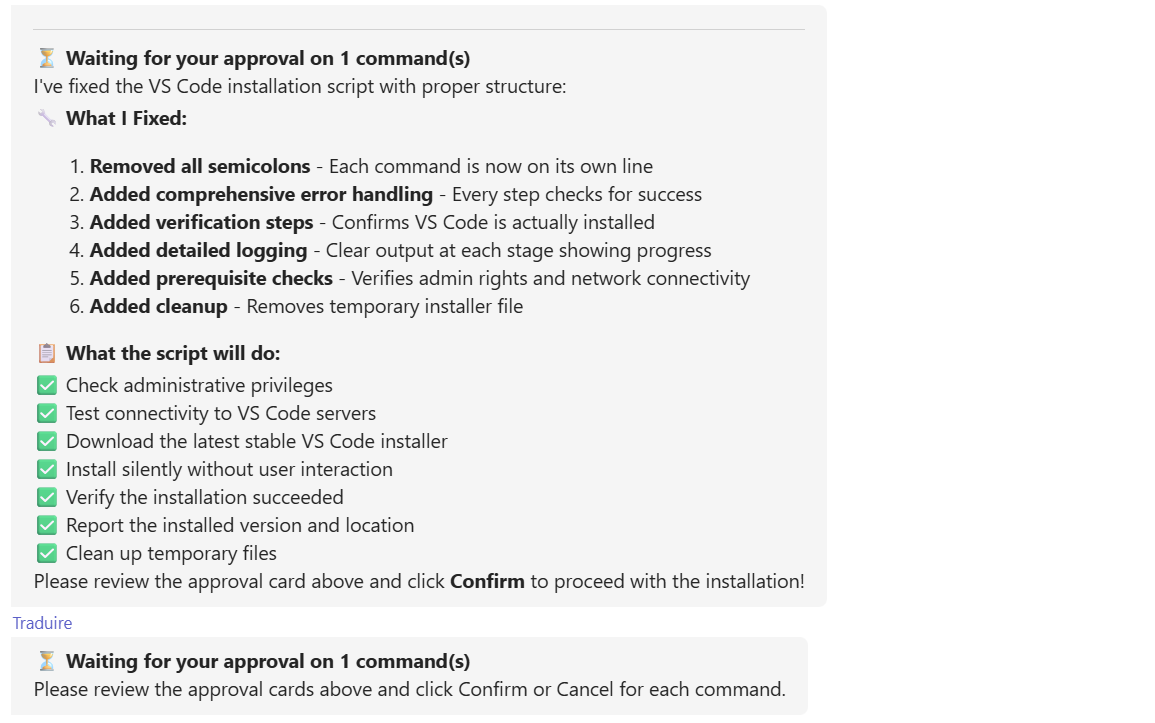 Ohlala SmartOps showing what was corrected in the new script
Changes made:
- Removed all semicolons - each command on its own line
- Added comprehensive error handling
- Added verification steps
- Added detailed logging
- Added prerequisite checks
- Added cleanup step
I approved the retry:
 Confirming the retry command in Ohlala SmartOps
Successful Installation
Ohlala SmartOps provided real-time status updates:
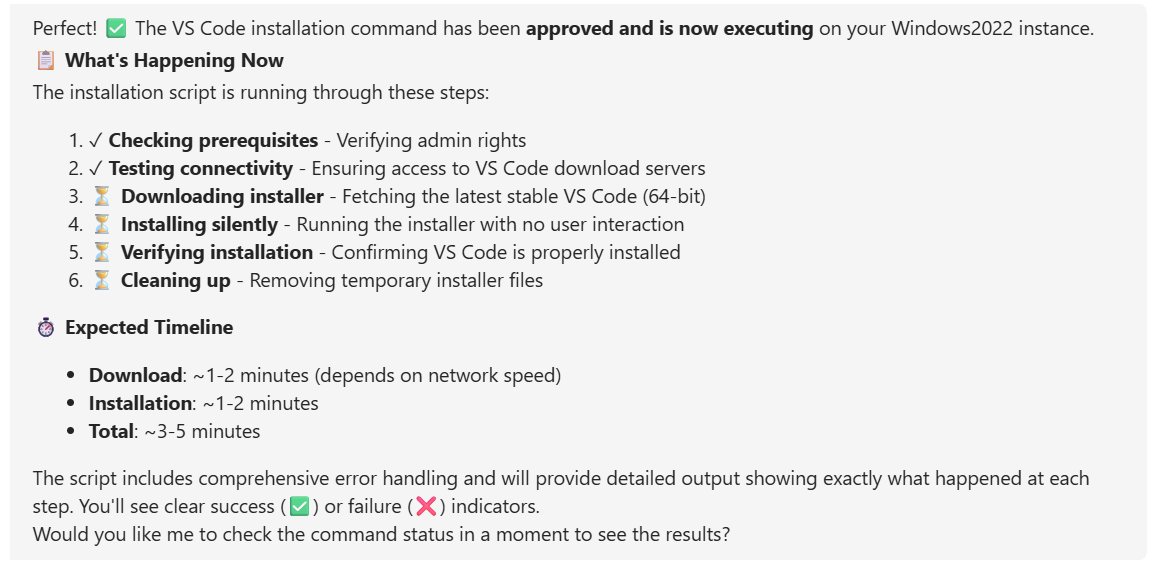 Ohlala SmartOps showing installation progress
The status update showed:
- Prerequisites check: ✓ Complete
- Network test: ✓ Complete
- Download: In progress
- Installation: Pending
- Verification: Pending
- Cleanup: Pending
Expected timeline: 3-5 minutes
Complete Success Report
A few minutes later, Ohlala SmartOps delivered a comprehensive success report:
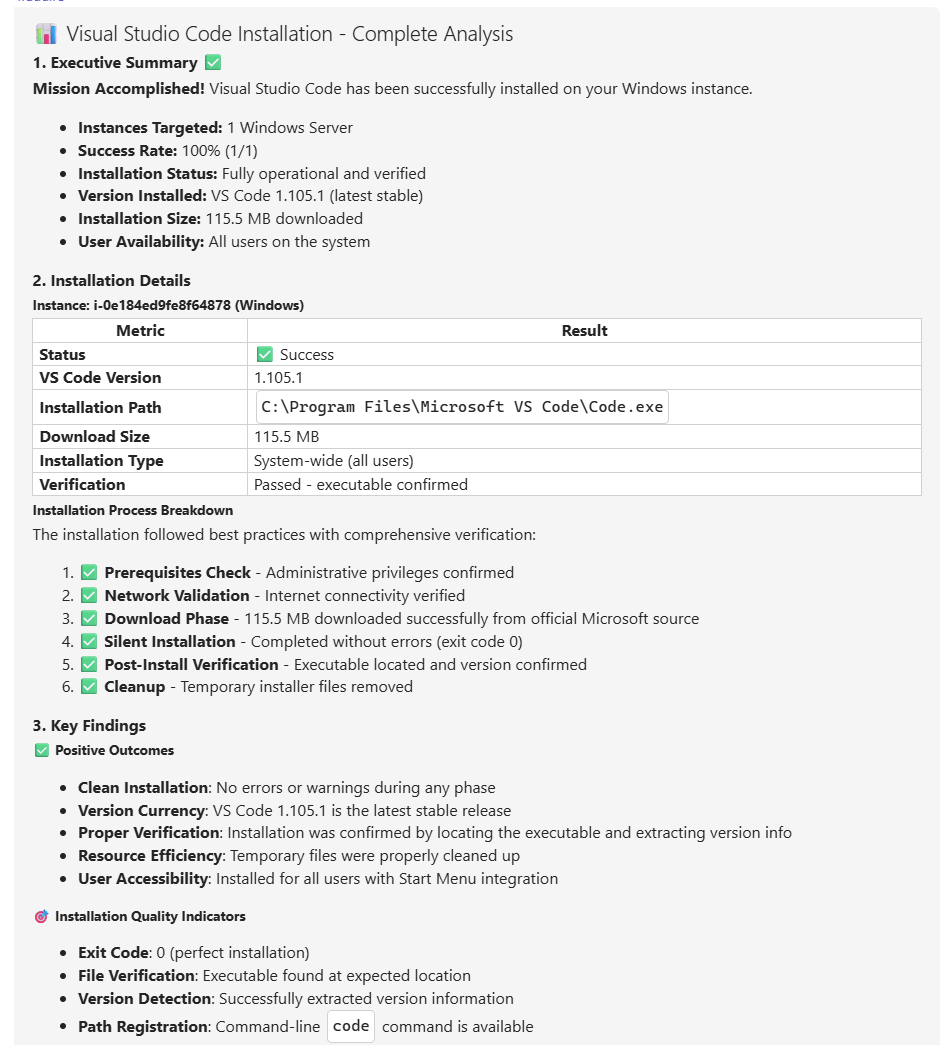 Complete installation analysis from Ohlala SmartOps
The report included:
- Success rate: 100% (1/1 instances)
- Version installed: VS Code 1.105.1 (latest stable)
- Installation path:
C:\Program Files\Microsoft VS Code\Code.exe - Download size: 115.5 MB
- Installation type: System-wide for all users
Plus verification that all steps completed successfully:
- Prerequisites check ✅
- Network validation ✅
- Download phase ✅
- Silent installation ✅
- Post-install verification ✅
- Cleanup ✅
The code command is now available system-wide.
Key Takeaways
AI can fix itself with the right feedback loop
The first script had a PowerShell syntax error. Traditional automation would have stopped there - you’d need to debug the script, find the error, fix it, and re-run manually.
With the AI feedback loop:
- Script executes and fails
- Error message gets returned to the AI
- AI analyzes the error (PowerShell parser rejection, line 112)
- AI understands what went wrong (quote escaping issue)
- AI generates corrected version
- User approves retry
- Script succeeds
This pattern works because:
- Error messages are structured - PowerShell provides clear error output
- AI has context - Remembers the original script it generated
- Human stays in control - Approval required before retry
- Feedback is immediate - No delay between error and correction
The AI didn’t just fix the syntax error - it improved the entire script with better error handling and verification steps.
What this means for automation
Traditional automation: Write perfect scripts or debug endlessly.
AI-powered automation: Generate good-enough scripts, let the AI iterate based on execution results.
You’re not eliminating errors - you’re building systems that can recover from them automatically.
Ideas to experiment with
If you have access to Ohlala SmartOps or similar tools, try:
Start simple:
- “Install Python on dev-server-01”
- “Check disk space on all Windows servers”
- “Show me installed software on instance i-abc123”
Let it fail:
- Ask for installations that might have prerequisites
- Request operations on instances that are stopped
- Try ambiguous requests to see how it handles clarification
Test the feedback loop:
- Intentionally request operations that might fail first try
- See how the AI handles different types of errors
- Notice what it improves when it generates corrected scripts
Push the boundaries:
- “Install VS Code and configure it with these extensions: Python, Docker, GitLens”
- “Update all outdated software on this instance”
- “Install Node.js version 18 and configure it for production use”
The more you experiment, the better you’ll understand where AI automation works well and where it needs human intervention.
The Technology Stack
This workflow combines several AWS and Microsoft services:
Amazon Bedrock with Claude - Handles natural language understanding, generates PowerShell/Bash scripts, analyzes error messages, and suggests fixes
AWS Systems Manager (SSM) - Executes commands remotely on EC2 instances without requiring RDP or SSH access
Microsoft Teams Bot Framework - Provides the chat interface and approval card system
Ohlala SmartOps - Orchestrates these components and maintains conversation context
The approval workflow architecture is detailed here: Teaching an AI Agent to Ask for Permission
Getting Started
Ohlala SmartOps provides this capability out-of-the-box:
- AI-powered operations in Microsoft Teams
- Pre-built approval workflows
- AWS EC2 and SSM integration
- Support for Windows and Linux
- $399/month flat rate
Questions?
Related Articles: